One click. You’re home.
A little remote in your menu bar. Apps, inputs, volume, and a circular remote, without another window living in your Dock.
 Sofafor Mac
A little remote. A better seat.
The remote you don’t have to look for. Control your TV, find your apps, and settle in—all from your Mac’s menu bar.
Free & open source · macOS 26+ · Apple silicon
1.0 · Apple notarized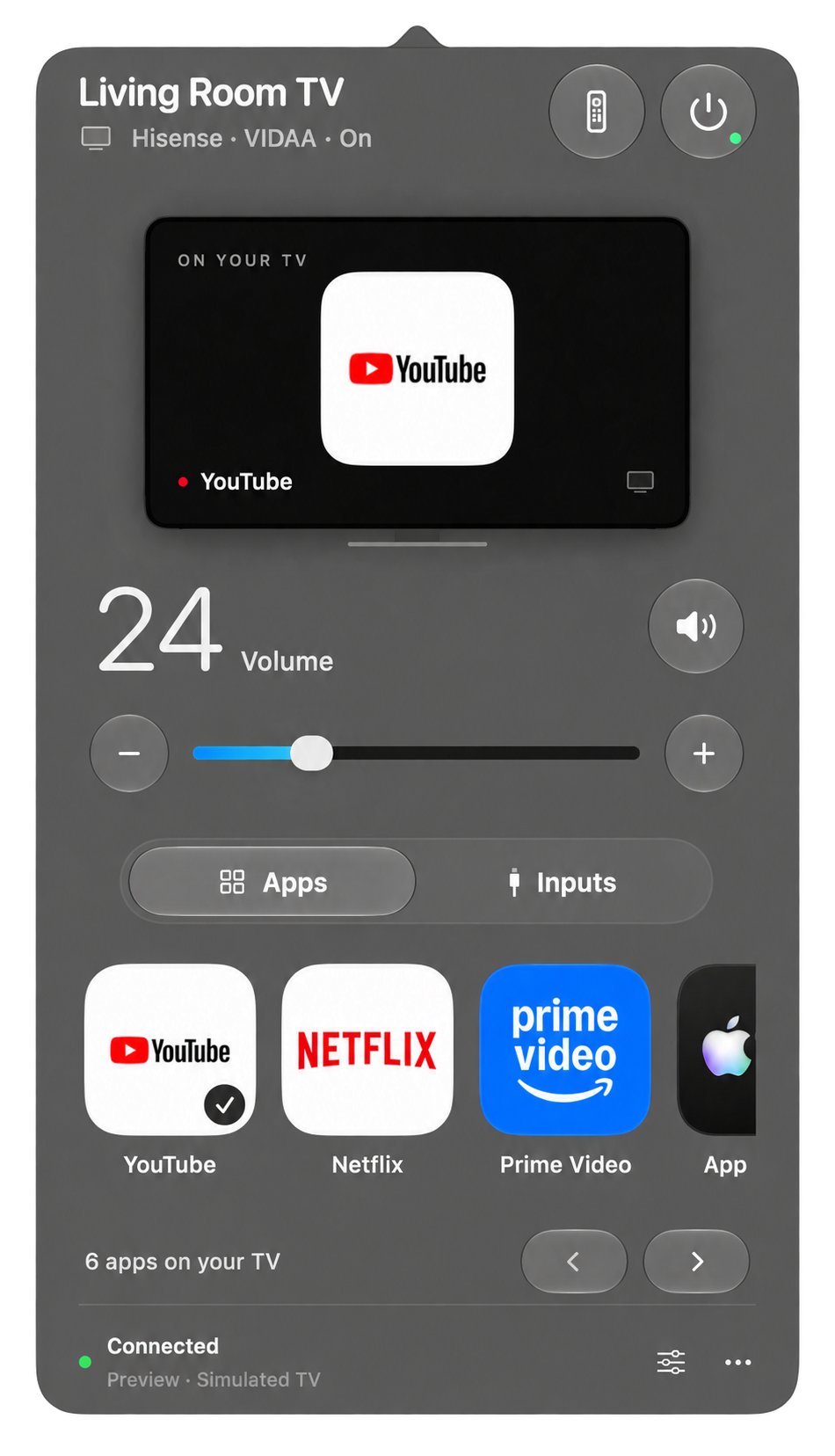
 A familiar feel.
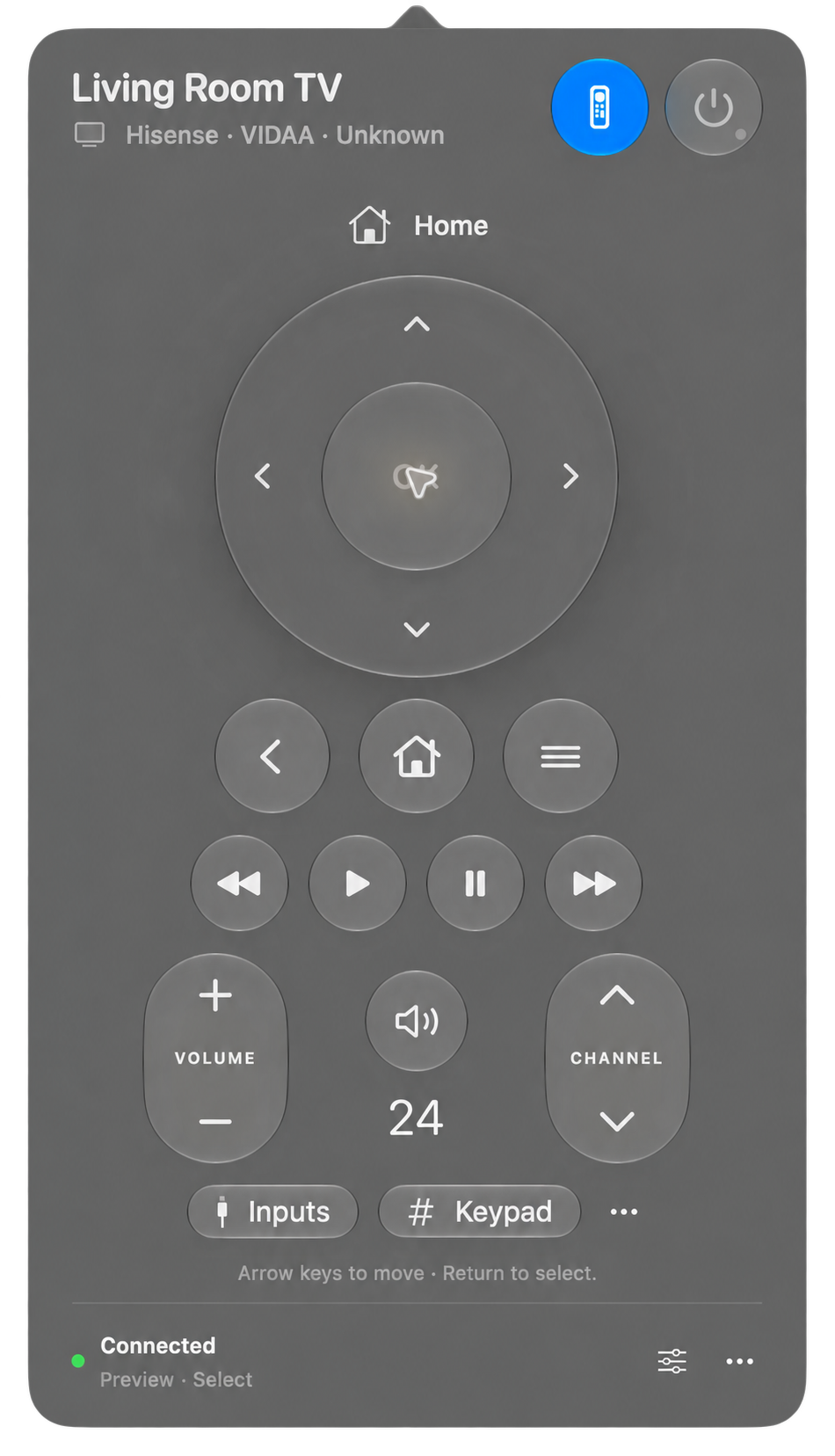
A little remote in your menu bar. Apps, inputs, volume, and a circular remote, without another window living in your Dock.
Native SwiftUI and Liquid Glass. Keyboard navigation, clear control states, and respect for Reduce Motion.
Commands go directly to your TV on your local network. Pairing secrets stay in Keychain. No Sofa account or analytics.
Find your screen
Support follows the TV’s operating system. Here’s what is supported.
Remote, app and input catalogs, and direct volume control. Tested on one Hisense A4K-series TV; other models and firmware need testing.
Any brand with Android TV Remote Service v2. Pairing, navigation, playback, and available volume feedback. No ADB or developer mode. Physical-device testing is still needed.
Secure network remote control with on-TV Allow approval. Glass volume slider when compatible feedback is available; −/+ otherwise. App lists vary by model. No physical Samsung TV testing yet; older Orsay models and network wake aren’t supported.
These platforms aren’t supported yet. A Hisense badge alone doesn’t establish compatibility.
From download to downtime
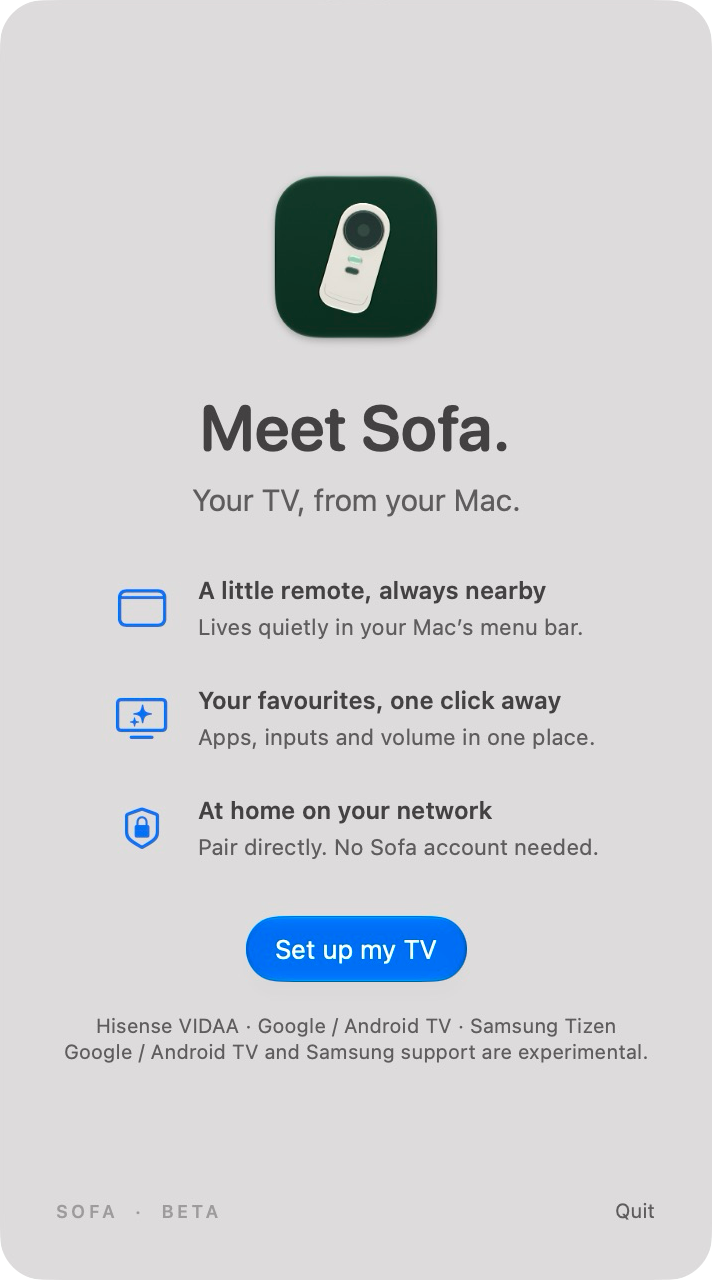
Open the DMG, drag Sofa to Applications, then eject the disk image and open Sofa. Find Sofa in your menu bar.
Use the same home network and allow Local Network access. Let Sofa discover your TV or enter its local IP address.
Follow the prompts: enter the TV’s code for VIDAA or Android TV, or choose Allow on Samsung. Give it a name and you’re ready to go.
1.0.0 · Build 16
Sofa is Developer ID signed by TOP NOTCH COMPANY LIMITED. Build 16 is Apple notarized. The download contains the approved app with its notarization ticket stapled, verified with Gatekeeper. Drag Sofa to Applications and open it normally; macOS may ask you to confirm opening a downloaded app.
Your TV, even when its address changes. Sofa now remembers your paired TV’s identity and reconnects when it discovers a new IP address, keeping your saved pairing. Discovery searches more compatible TV services and retries after connection loss. Keep your TV awake and allow devices to communicate on your home network.
Updates, without the extra steps. Sofa now checks daily, downloads signed updates in the background, and installs them when you quit. Change this in Settings → Updates, or check manually at any time. Build 15 users can update inside Sofa. Coming from build 14 or earlier? Install this DMG once to get automatic updates. Your saved TV pairing stays with you.
Compatibility varies by TV and app. YouTube seeking is verified on the test VIDAA TV; other apps can use saved media-button or Left/Right control modes. Google / Android TV and Samsung Tizen support have automated protocol checks but no physical-device validation yet. Samsung’s slider requires a compatible volume service; native volume buttons remain available when it is missing.
Free to use. Open to make your own.
Explore the source ↗